


The search terms report in Google Ads is the one place where Google shows you what people actually typed before they saw your ad. Most advertisers open it, delete a few obviously bad queries and move on. That catches the cheap wins, but it misses what really moves performance: brand traffic hiding inside prospecting campaigns, converting queries nobody is building around, and relevant queries that never convert because the ad or landing page doesn't match.
This article covers what the report shows (and what it hides), how to sort every query into one of three actions, which terms to block, and how the report behaves in Performance Max, DSA and AI Max.
What Is the Search Terms Report in Google Ads (and Where to Find It)
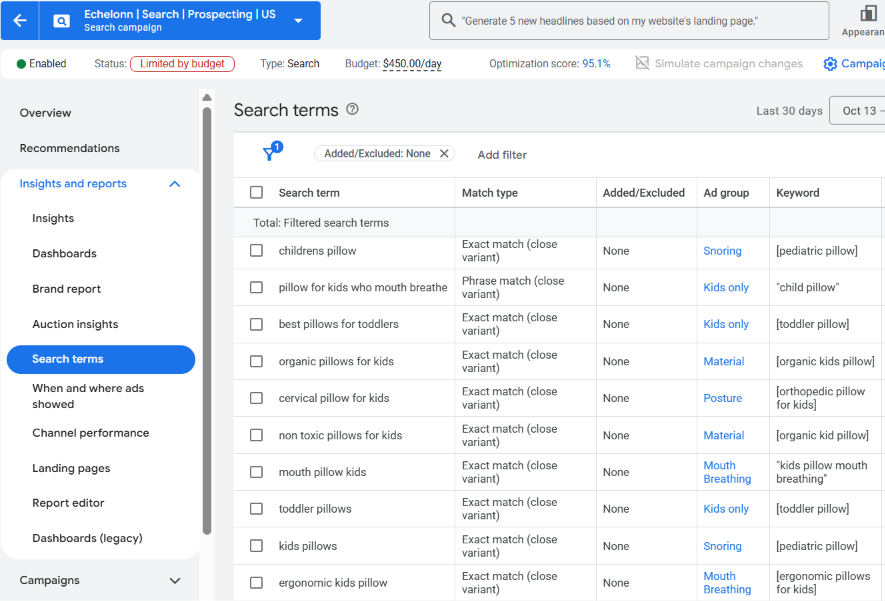
The search terms report lists the actual queries that triggered your ads, and those can sometimes look very different from the keywords you bid on. The terms listed depend on your keyword matching options, so a single keyword can pull in dozens of queries you never typed into the account.
To find it, go to Campaigns > Insights and reports > Search terms. Two columns are worth switching on straight away:
- Keyword is hidden by default. It shows which of your keywords matched the query.
- Match type shows how closely the query relates to that keyword.
Google only lists queries that a significant number of people have searched. Low-volume queries are left out for privacy reasons. Search terms insights helps fill this gap by grouping search activity into intent-based categories, including terms that aren't individually visible in the report for privacy reasons. Lower-spend terms and searches that can't be assigned to a category may appear under “other search terms”. If the report looks clean but the spend doesn't add up, check insights before assuming everything is fine.
Where to Find Search Terms by Campaign Type
For Search campaigns, follow the steps above: open Campaigns > Insights and reports > Search terms. By default you see the whole account, so narrow it to a single campaign or ad group before you start analysing. To block a query, tick the box next to it and choose Add as negative keyword. You can add it to an ad group, a campaign or a shared negative keyword list.
For Performance Max, use the same Search terms page and filter it to your Performance Max campaign. You’ll see the queries that triggered your ads, with data available from March 2023.
Dynamic Search Ads and AI Max use the same dropdown. DSA has its own views for search terms and for search terms with landing pages. AI Max has the Search terms and ad combinations view, which shows the headline and landing page behind each query. If you build a custom view in the Report editor instead, keep in mind that you can't add negative keywords directly from it.
How to Read the Search Terms Report: What to Look For
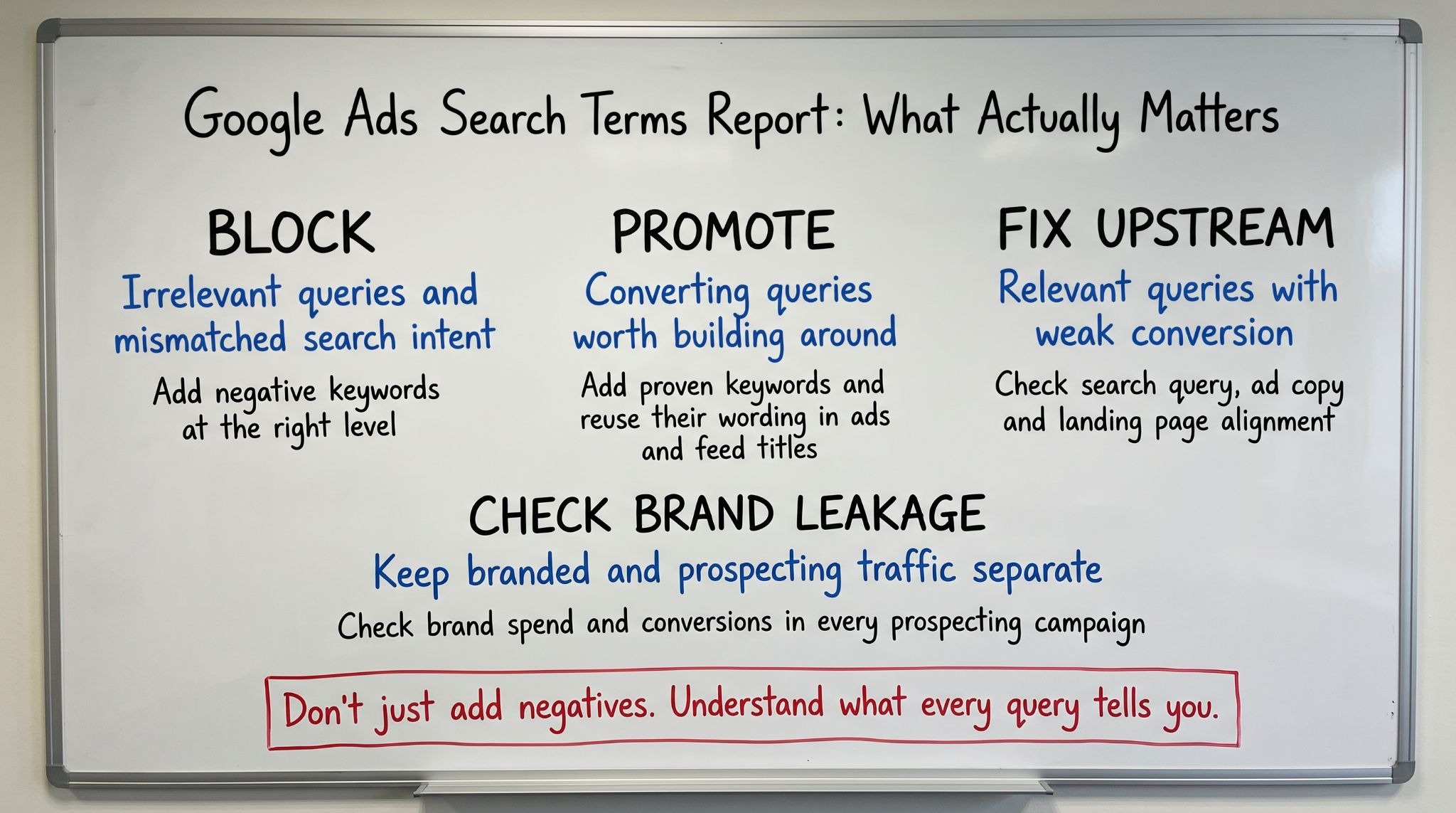
Every query in the report deserves one of three decisions: block it, build on it, or fix what happens after the click. “Promote” and “fix alignment” are covered below. “Block” gets its own section after that, because it needs the most detail.
Promote: Build Around the Queries That Already Convert
The best source of keyword and Shopping feed ideas is the traffic you're already getting. For match types, keep it simple: Exact for proven, high-converting keywords, Phrase to discover relevant variations, and Broad only when Smart Bidding has accurate conversion data and the negative list is tightly managed.
In the Bulk Nutrients account we worked on, we analysed a full year of search term data that showed keyword themes that were driving conversions but weren’t fully covered by the existing product listings. Someone searching “whey protein powder” and another person searching “protein supplement for muscle building” want the same product, but Google treats them as different intents. We built product duplicates around those themes, so the same product could show up for more of the related searches.
Fix Alignment: When the Query Is Right but the Click Doesn't Convert
If a query is relevant and still doesn't convert, the bid is rarely the problem. We call this the holy trinity of alignment: search query, ad copy, landing page. A mismatch between the search query, ad copy and landing page can hurt conversion rate and may also contribute to a weaker landing page experience in Quality Score.
To prove this, look at this example: in the Breatheezy account we worked on, daily search term review showed impressions climbing on a fast-growing competitor's brand terms. That led to a dedicated landing page built for that competitor, and landing page experience moved from “Below average” to “Average” because traffic no longer landed on a product page unrelated to the keywords. CPCs fell for the same keywords. In under a month (7 to 30 November 2025), the page brought in roughly $20K in revenue on about $2.2K of spend, at a $7.17 CPA.
Which Search Terms to Add as Negative Keywords
Add a query as a negative when its intent is different from what you sell, not simply because it hasn't converted yet. Research queries (how to, what is, free, DIY, tutorial) are often the clearest candidates. These people want information, not a product, but check them against your converting terms before you block them. Another example are queries like “rent”. If you sell fitness equipment and your ads show for “gym equipment rental prices”, you're paying for someone who wants to rent, not buy.
Start with prospecting campaigns. That's where Google has the most freedom to explore traffic, so it's where irrelevant queries pile up fastest. Left unchecked, Google's AI will happily keep finding clicks. But clicks are not what you’re after – conversions are.
A few practical rules:
- Pick the match type deliberately: Negatives can be Exact, Phrase or Broad. A broad-match negative blocks a search when it contains all the terms in your negative keyword, regardless of their order. If it contains only some of those terms, your ad may still show. Negatives also don’t match close variants, so add singular and plural forms separately. And negatives added from the search terms report default to Exact, so change the match type if you want to block a pattern rather than a single query.
- Use shared negative lists: Keep one list per type of junk, such as research intent, and attach it to every campaign that needs it. New campaigns start clean, and you stop re-adding the same terms campaign by campaign.
- Block the recurring word, not just the query: When the same word keeps turning up in queries you don't want, such as “rental” or “tutorial”, one negative on that word does more than twenty exact-match negatives on individual queries.
“Don't block a term based on one bad week. Add negative keywords when a query consistently underperforms against your goals, and use them sparingly. Over-blocking can restrict the traffic Smart Bidding needs to learn from.”
Why Brand Searches Distort Your Search Terms Report
If branded queries show up in your prospecting campaigns, your prospecting results look better than they are. Branded searches come from people who already know you, so they convert at higher rates and lower costs than non-branded searches. When both sit in the same campaign, blended ROAS looks healthy while the campaign that's supposed to win new customers quietly underperforms.
What Brand Leakage Does to Your Numbers
Here’s what you can expect if your brand terms are included in your prospecting campaigns:
- Inflated metrics: Brand conversions prop up the ROAS, so weak prospecting never shows up in the data.
- Budget misallocation: Campaigns with brand traffic mixed in look more profitable, so they attract more budget. But brand demand is limited, so the extra spend ends up on non-branded traffic at a lower return, while cleaner prospecting campaigns get cut.
- Unclear growth: You can't tell whether revenue is growing because more people search for you or because prospecting is working.
How to Check for Brand Leakage
Here’s how to find out if your brand terms are leaking into your prospecting campaigns:
- Open the search terms report for a prospecting campaign.
- Filter for queries containing your brand name and its common misspellings.
- Compare their share of spend and conversions with the campaign total.
If brand queries take a meaningful share, your prospecting numbers aren't clean. Repeat the check for every prospecting campaign, including Performance Max.
How to Fix Brand Leakage
The goal is to separate branded and prospecting traffic so you can judge each one on its own.
- Give brand its own campaigns: Run branded Search and Shopping separately, with their own budget and reporting.
- Block brand in prospecting: Add your brand name, its variations and misspellings as negative keywords in prospecting Search and Shopping campaigns.
- Use brand exclusions in Performance Max: Campaign-level brand exclusions work better than negative keywords here, because they also catch common misspellings, versions of your brand in other languages and alphabets. You can also use them for competitor brands.
Search Terms Report in Performance Max, DSA and AI Max
The report works the same way in automated campaign types, but what you can do with it differs.
Performance Max: Account-level negatives (up to 1,000) apply across all campaigns. Campaign-level negatives (up to 10,000) apply to a single PMax campaign, and campaign-level negative keyword lists let you reuse one list across several. Negatives here don’t match close variants, so list misspellings or use brand exclusions. Store visit and store sale conversions aren’t available in the report.
Dynamic Search Ads: Use the DSA report as an additional source of keyword research. Letting Google crawl your site is one of the fastest ways to find high-intent queries you missed. The DSA views also pair each query with the landing page it was sent to, so pages that attract the wrong traffic are easy to spot. DSA is also on its way out: Google has said it will start automatically upgrading DSA campaigns to AI Max in February 2027. If you still run DSA, use its report while you have it.
AI Max: Review search terms after enabling AI Max and allow enough data to accumulate before making broader optimisation decisions. Clearly irrelevant or brand-unsafe queries can still be excluded as needed. Then use the “Search terms and ad combinations” view to see the headline and landing page behind each query. Note that filtering Match type = AI Max doesn't include “other search terms”, so the numbers can look lower than reality.
How Often Should You Review the Search Terms Report?
A weekly look is a reasonable starting point, and Google’s AI Max reporting guidance suggests evaluating search terms every one to two weeks. Queries shift as your keywords, feed and competitors change, so a report you checked a month ago may no longer reflect what you're paying for.
New accounts are a different case. Early on, the report is there to show you what is triggering your ads, so it's usually better to watch for the first two weeks and block only what is clearly wrong. Change too much too soon and you can't tell which change made the difference.
Check more often when something changes: a new campaign, a feed update, a budget increase or a seasonal peak. New queries tend to show up fastest at those moments and an unchecked mistake costs the most.
The Bottom Line: Search Terms Show Where Your Budget Really Goes
The search terms report is the clearest view you get of what Google actually bought on your behalf, and it's where the gaps in your setup show up: queries you should be building around, brand traffic inflating your prospecting results, and landing pages that don't match what people searched for. Reading it as a diagnostic tool rather than a list of negatives to add is what separates a quick tidy-up from real optimisation.
In practice, that means deciding what to do with every query, keeping brand and prospecting apart so each is judged on its own numbers, and adapting how you read the report as your campaign types change. Done regularly, it pays off twice: you stop funding traffic that was never going to buy, and you find the queries worth putting more behind.